At a glance: Our AI agent’s first web search tool used Crawl4AI, which opened a new headless Chromium browser for every search. Since each browser uses an estimated few hundred MB of memory, a load test with 10 concurrent searches exhausted the server’s memory and crashed it. We rebuilt web search for AI agents with SearXNG as the default, a plain HTTP metasearch call with no browser, and kept Crawl4AI only as a fallback that now runs one shared browser with capped concurrency. The lesson: the most powerful tool is not always the right default.
Our AI agent needed to search the web. At first, this sounded like a solved problem, so we reached for a popular, powerful tool: Crawl4AI, which reads pages by driving a real headless browser. In fact, it worked perfectly for a single search. However, when we load-tested it with 10 searches running at the same time, the server ran out of memory and crashed. In this post, we explain why that happened and why the tool itself was not the problem. Finally, we show how we rebuilt web search for AI agents around a much lighter default, SearXNG, while still keeping Crawl4AI for the pages that truly need a browser.
The first attempt
Our first version used a tool called Crawl4AI. Crawl4AI is an open-source Python library built for collecting web content for AI systems. The way it works is that it opens a full, real web browser in the background, a headless Chromium browser, and uses it to load and read a page the same way a normal browser would. It is a popular and widely used library, with more than 60,000 stars on GitHub, so it felt like a solid, well supported choice.
The crash
Why Crawl4AI handles hard pages so well
Because Crawl4AI drives a real browser, it can do things a plain request cannot. It can wait for the page to finish loading, scroll down to pull in content that only appears as you go, run the page’s own scripts, and then hand back a clean, readable version of the page. This is why it works so well on difficult websites, the ones that build their content with JavaScript after the page first loads, where a plain request would often return only an empty shell. That same power is also where our problem started.
How much memory does a headless browser use?
A real browser is heavy. Running headless Chromium is close to running a full copy of Chrome, with all of its moving parts loaded into memory at the same time. As a result, every browser instance that Crawl4AI opened used a large amount of memory. Public estimates put a headless Chromium instance at roughly 100–500 MB, with 300–500 MB a common planning figure once it renders a real page.
What happened under load testing
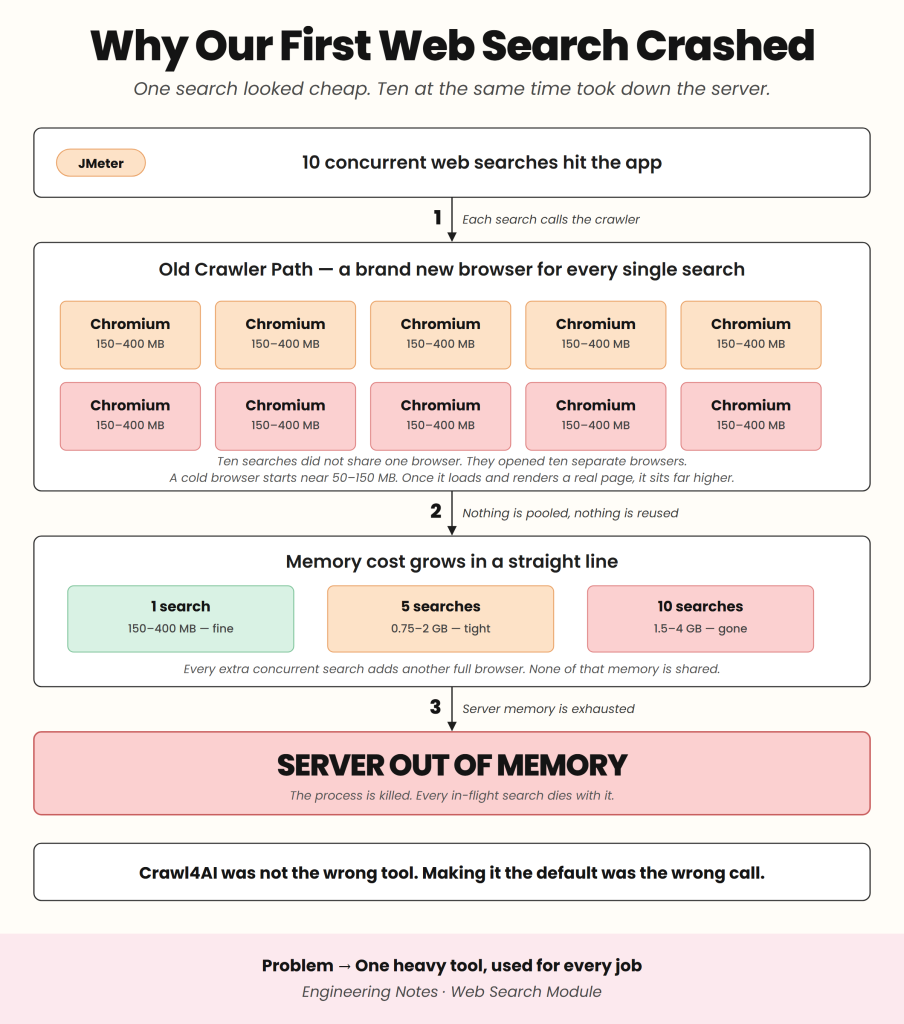
On top of that, our early script opened a brand new browser every single time it ran a search, instead of reusing one. So when many searches ran together, we were not opening one browser and sharing it. We were opening a separate browser for each search. Ten searches at the same time meant ten separate browsers. Each one carried its own few hundred MB, and none of that memory was shared between them, so the total added up fast with every extra search running at once.
Two other things made this worse. First, when you run Crawl4AI on your own server, you have to manage all of this yourself, including the browsers and how many of them run at once. Second, the memory cost does not go down as you do more work. Every extra page you want to read at the same time means another full browser, and another few hundred MB on top.
Reading one page at a time was fine. The trouble started the moment we needed to handle many searches at once, which is exactly what a real product has to do. We saw this clearly when we used JMeter to put more load on the application. When we reached 10 concurrent searches, the many browsers running at the same time filled up the server memory, and the server crashed.
The realisation
When we looked at what had happened, we saw the real mistake. We had reached for the most powerful tool and made it our default. But most of our searches were ordinary. They did not need a full browser to read and render an entire page. They only needed a quick and light way to get search results. The powerful tool was not wrong. It was just the wrong choice for the common case.
The fix
We changed our default to a tool called SearXNG.
SearXNG is a free and open-source metasearch engine. A metasearch engine does not keep its own index of the web. Instead, it sends the query to several other search engines, collects their results, and combines them into a single list. Because of this, it does not need to open a browser at all. It talks to the search engines directly and returns results, which is fast and light on memory. It is written in Python, it is released under the AGPL-3.0 open-source license, and it can be self hosted, which means we run it on our own server and stay in control of it. It also does not track or profile its users. It can pull results from many sources, including Google, Bing, Brave, DuckDuckGo, Qwant, Startpage, and Yahoo.
Right now our default setup uses SearXNG together with DuckDuckGo. SearXNG is the layer that runs the search and gathers the results, and DuckDuckGo is one of the search engines it draws those results from. This combination gives us clean search results without the heavy cost of a browser.
We did not throw Crawl4AI away. Some pages really do need a full browser to be read properly. So we kept Crawl4AI as a backup, ready to step in for those harder pages, instead of using it for every search.
| Crawl4AI | SearXNG | |
|---|---|---|
| What it is | Open-source Python crawler that drives a headless browser | Open-source, self-hosted metasearch engine |
| Uses a browser | Yes, headless Chromium | No, a plain HTTP call that returns JSON |
| JavaScript-heavy pages | Handles them well | Returns search results, not rendered pages |
| Memory per request | Public estimates of roughly 100–500 MB per browser | Far lower, since no browser runs |
| Best for | Hard pages that need full rendering | Everyday searches |
| How we use it | Fallback only, with one shared browser | Default for every search |
How our web search works now
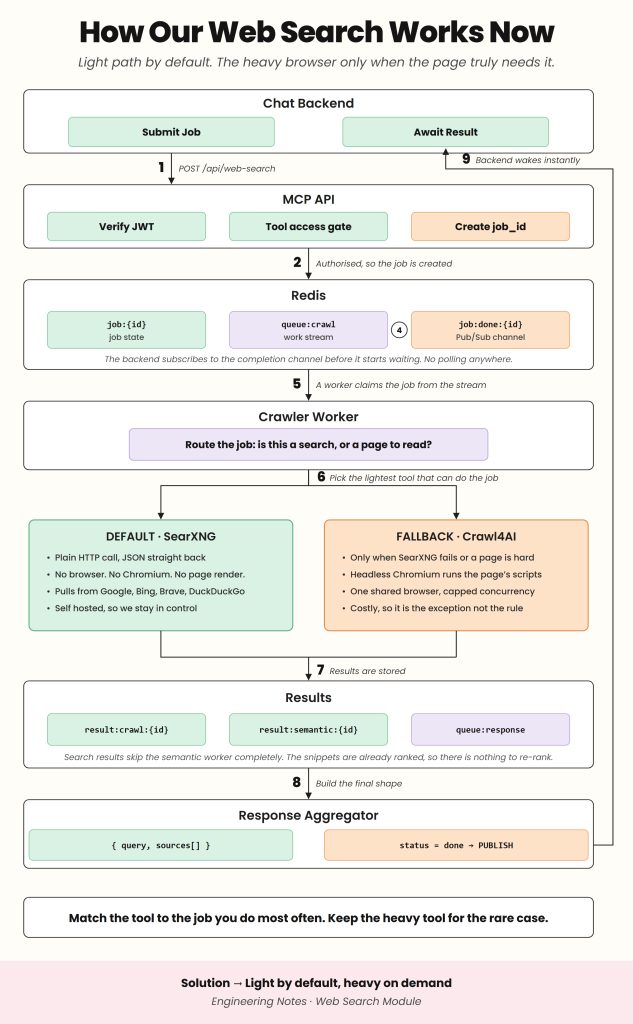
Our web search now runs as a small job pipeline instead of a single function call. First, the chat backend sends a request to our MCP API at /api/web-search. The API verifies the user’s JWT, checks that they have access to the web search tool, and then creates a job ID.
Next, the job goes into Redis. Its state is stored under its own key, and the work itself is pushed onto a Redis stream. At the same time, the backend subscribes to a Pub/Sub completion channel for that job before it starts waiting. As a result, the backend never polls for results; instead, it is notified the moment the job finishes.
A crawler worker then claims the job from the stream and decides what kind of work it is: a search, or a page to read. For searches, it uses SearXNG, which is a plain HTTP call that returns JSON, with no browser involved. Only when SearXNG fails, or a page needs JavaScript to render, does the worker fall back to Crawl4AI. Even then, it no longer opens a new browser per request. Instead, all fallback jobs share one headless Chromium browser with capped concurrency, which fixes the exact mistake that crashed our first version.
Finally, the results are stored back in Redis. Search results skip our semantic re-ranking step, because the search engines have already ranked the snippets. (We cover semantic re-ranking for full pages in our post on smarter web crawling with semantic search.) A response aggregator then builds the final response, the query plus its list of sources, marks the job as done, and publishes the completion event, which wakes the backend instantly.
The lesson
The main lesson for us was simple. The most powerful tool is not always the right default. It is better to match the tool to the job you do most often, and to keep the heavy tool only for the few cases that really need it.
Our first setup worked for a single search but broke when many searches ran at once, which is exactly what happens in a real product. The fix was not a bigger server or a clever trick. It was stepping back and asking what the job actually needed. Most of the time, the answer was less than what we first reached for.
Leave a Reply